
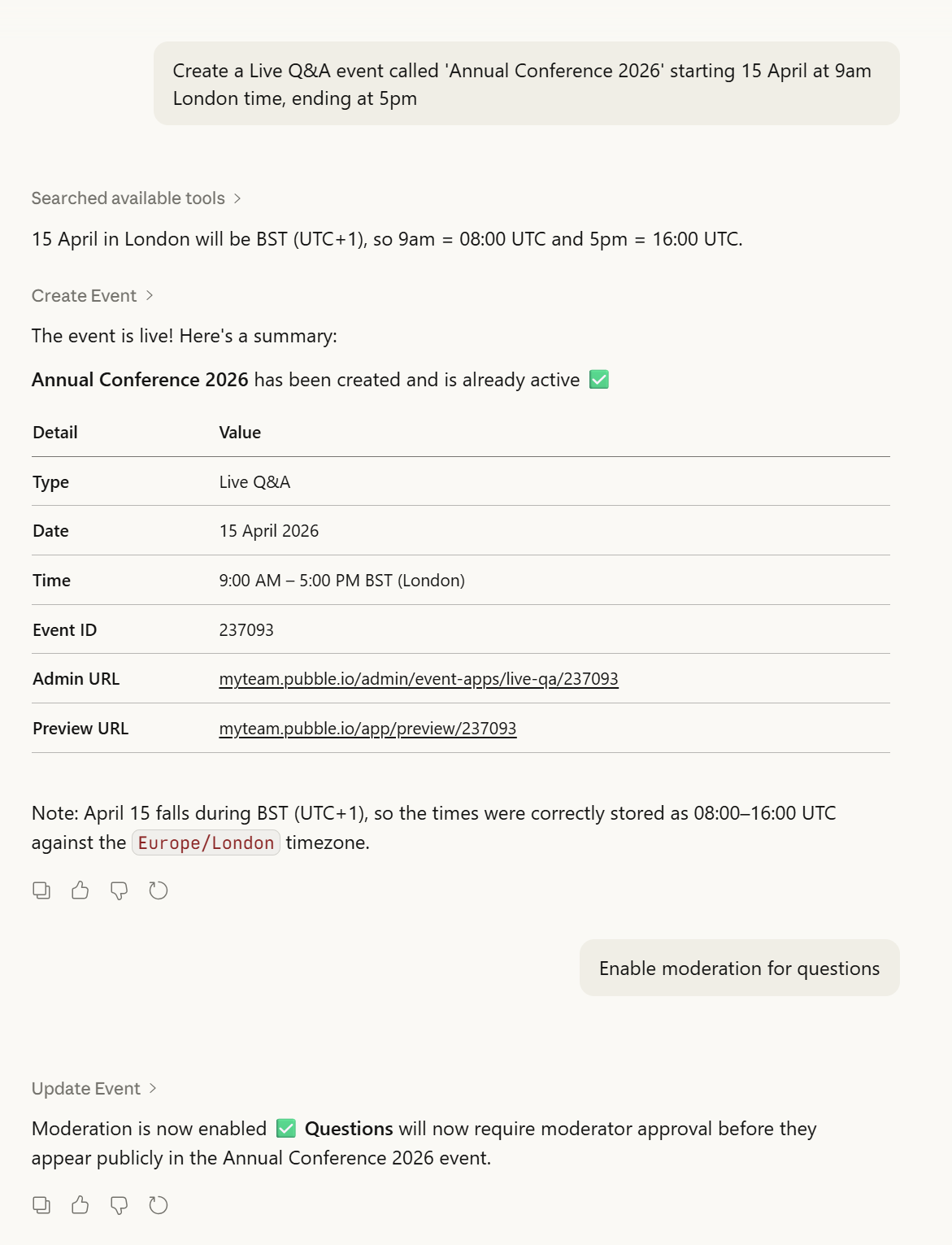
Creating an Event
MCP Server
The Pubble MCP (Model Context Protocol) server lets you manage your live events directly from AI assistants such as Claude. You can create and configure events, moderate audience submissions, run polls, manage your team, and analyse event performance — all from a conversational interface.
MCP (Model Context Protocol) is an open standard that lets AI assistants securely discover and call external tools and services. Your AI client acts as the MCP host, connecting to the Pubble MCP server to perform actions on your behalf.
Prerequisites
Pubble community subscription
An MCP-compatible AI client — see Supported Clients below
Supported Clients
The Pubble MCP server works with any client that supports Streamable HTTP transport. Verified clients include:
Claude Desktop — desktop app for macOS and Windows
Claude.ai — web interface at claude.ai
Claude Code — CLI and IDE extension for developers
Cursor — AI-powered code editor
Connecting to the MCP Server
The Pubble MCP server is a remote HTTP server with a single canonical URL — you do not need to encode your community subdomain anywhere in the configuration. The community you want to grant access to is chosen during the OAuth authorisation step described below.
POST https://www.pubble.io/api/v2/mcp
Authentication
The MCP server uses OAuth 2.0 Bearer token authentication with Dynamic Client Registration (RFC 7591) and PKCE. When your MCP client first connects it will be redirected to Pubble to sign in (if you are not already signed in), and then to an authorisation page that lists the communities you are a subscriber of. Choose the community you want this MCP client to act on, click Authorize, and your client will receive an access token bound to that single community.
To switch the MCP connection to a different community, disconnect the server in your AI client and reconnect — you will be taken through the authorisation flow again and can choose a different community.
Configuring Claude Desktop
To add the Pubble MCP server to Claude Desktop, open your Claude Desktop configuration file and add the following entry under mcpServers:
{
  "mcpServers": {
    "pubble": {
      "type": "streamable-http",
      "url": "https://www.pubble.io/api/v2/mcp"
    }
  }
}
Restart Claude Desktop. On first use you will be prompted to authorise Pubble and pick which of your communities to grant access to.
Configuring Claude Code
To add the Pubble MCP server to Claude Code, add the following to your .mcp.json file (in your project root or home directory):
{
  "mcpServers": {
    "pubble": {
      "type": "streamable-http",
      "url": "https://www.pubble.io/api/v2/mcp"
    }
  }
}
On first use you will be prompted to authorise Pubble and pick which of your communities to grant access to.
What You Can Do
Once connected, you can ask your AI assistant to perform the following actions on your Pubble community:
Events
List, create, update, and delete events
Copy an event to use as a template for a new one
Activate or deactivate events to control audience visibility
Configure event settings including schedule, moderation, theming, and input fields
Content
List and search audience questions, answers, comments, and liveblog updates
Approve or unapprove submissions in the moderation queue
Pin important posts to the top of the stream
Create posts, answers, and polls
Delete posts permanently
Team
Add and remove event moderators by email address
List all moderators and their roles for an event
Analytics
Get post counts, engagement metrics, and audience statistics for an event
Generate an AI summary with sentiment analysis of event content
Scheduling
Schedule future actions on posts and events, such as pinning a post or closing submissions at a specific time
Example Workflows
Setting up an event for a conference
Ask your assistant: "Create a Live Q&A event called 'Annual Conference 2026' starting 15 April at 9am London time, ending at 5pm"
Then: "Enable moderation for questions"
Adding moderators
Ask your assistant: "Add steve@pubble.io and sarah@pubble.io as moderators"
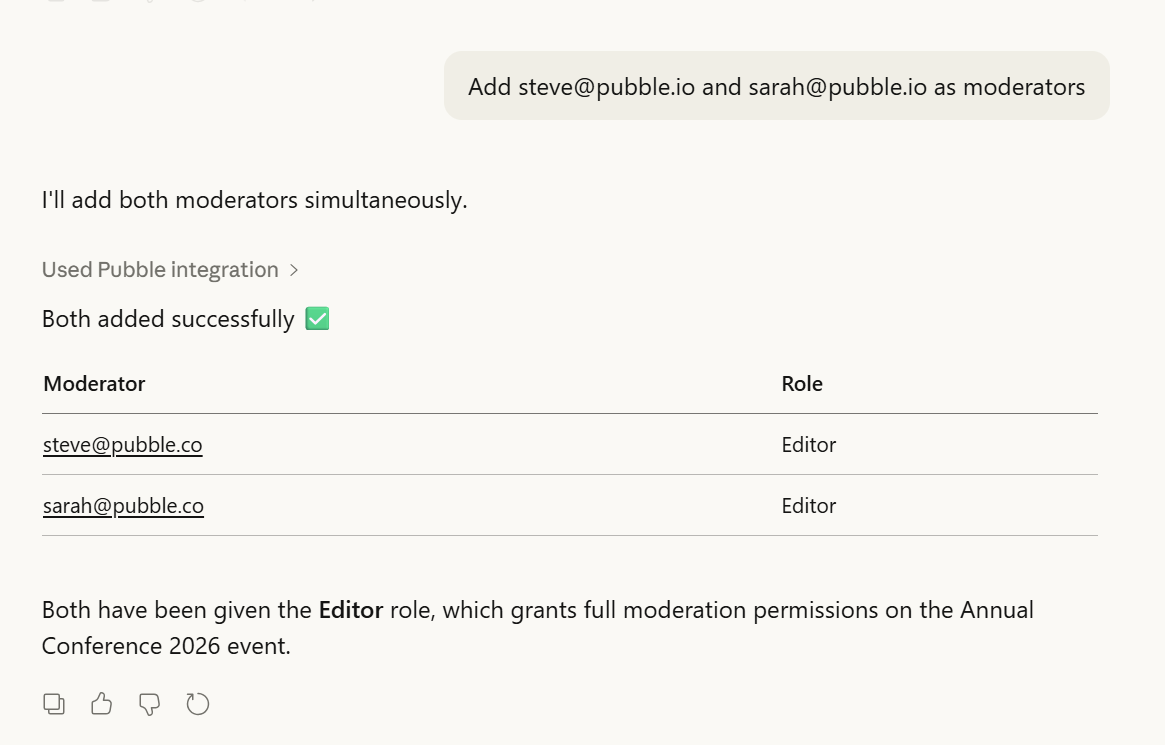
Adding moderators
Moderating a live session
Ask your assistant: "Show me the unapproved questions for the Annual Conference event"
Then: "Approve all questions"
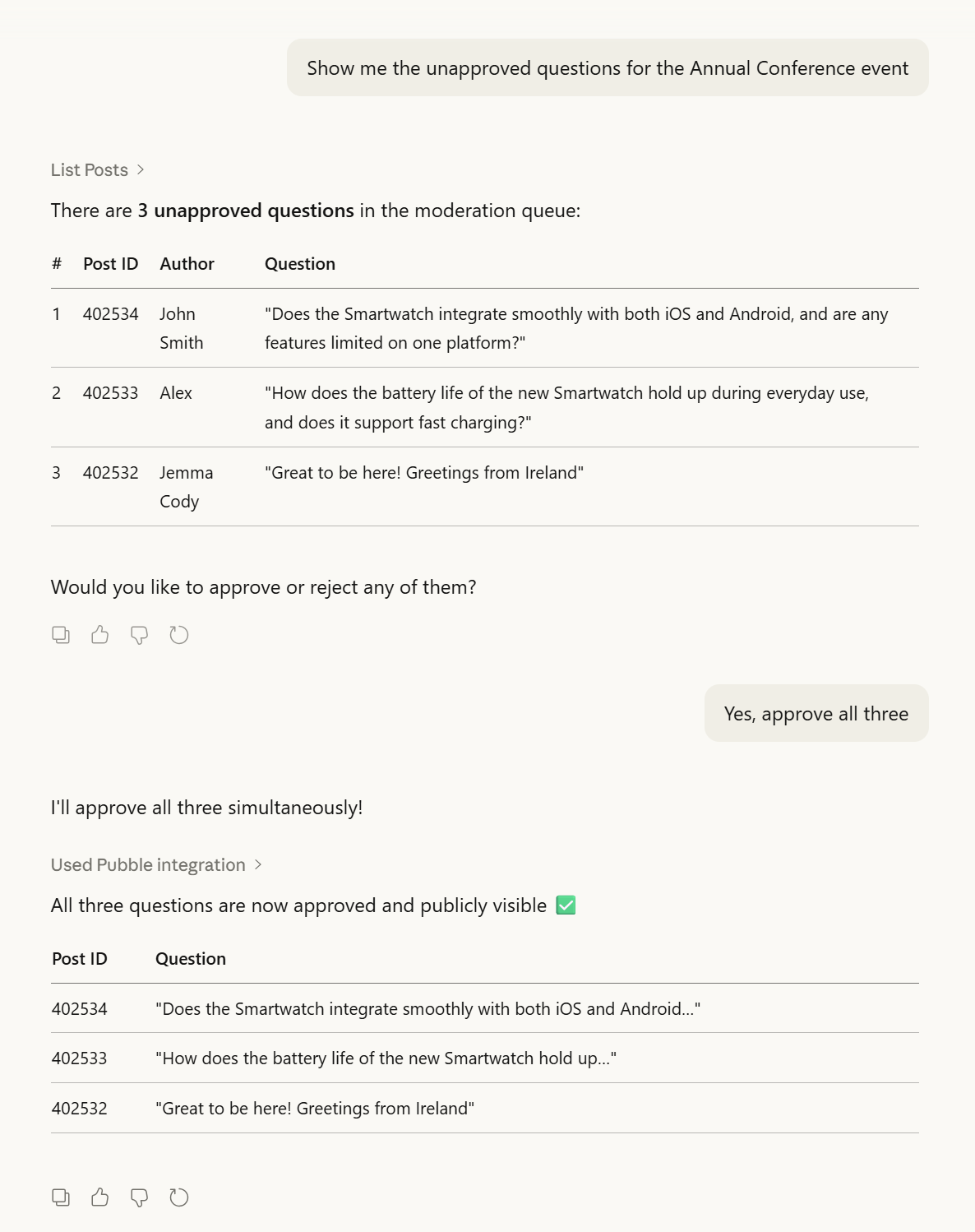
Approving content
Pinning a post
Ask your assistant: "Pin question [post ID] to the top"
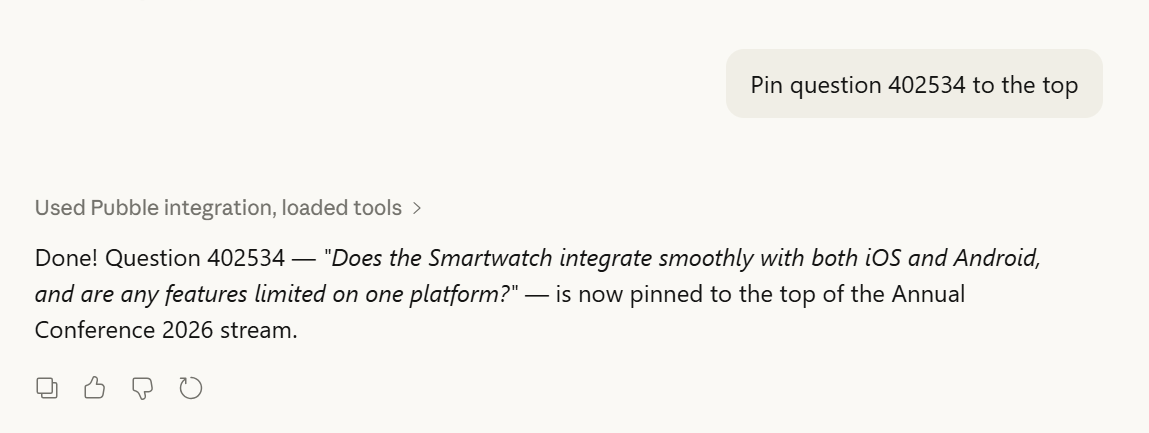
Pinning a post
Adding a poll
Ask your assistant: "Add a new poll about how AI can be beneficial in the workplace"
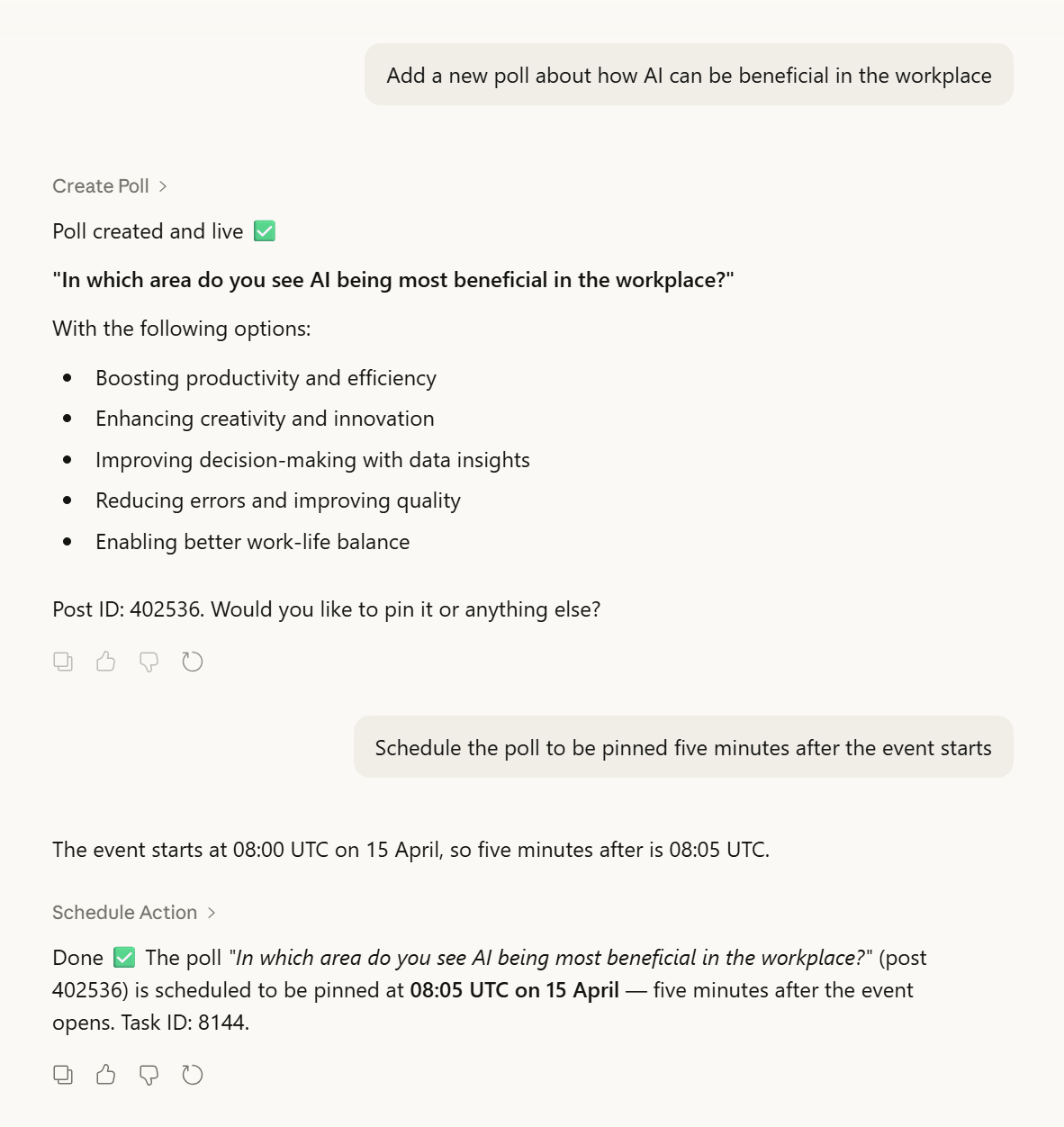
Adding a poll
Post-event reporting
Ask your assistant: "Give me the stats and a summary for last week's conference Q&A"
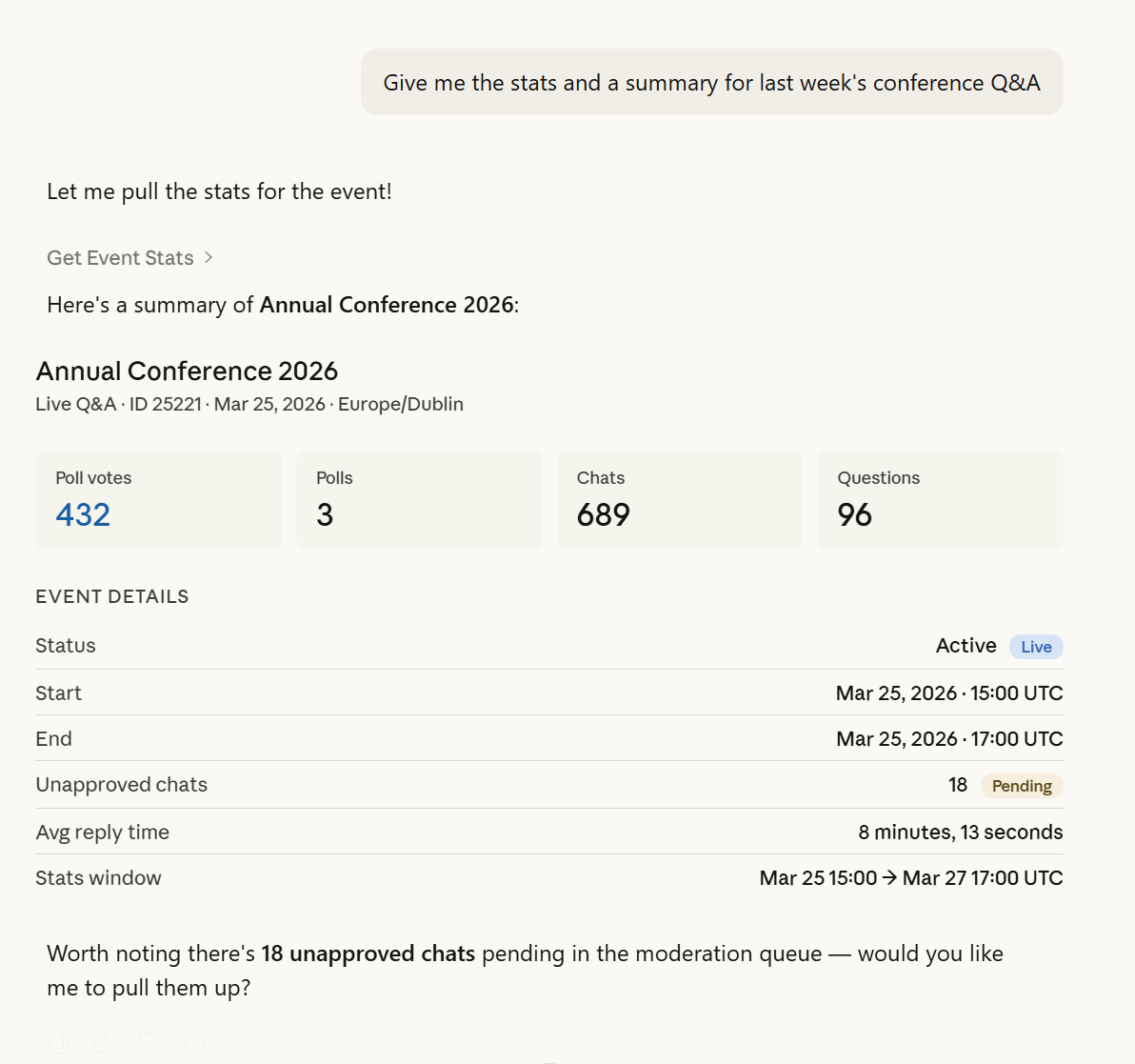
Events reports
Permissions
The MCP server enforces the same permissions as the Pubble platform. You can only manage events and content within communities you are a subscriber of. Your OAuth token is scoped to the single community you selected during the authorisation step, and grants both read and write access within that community. All tool calls are recorded in the Pubble audit log, attributed to your account.
Some destructive actions (such as deleting an event) require an explicit confirmation before they are executed. Your AI assistant will prompt you to confirm before proceeding.
Rate Limits
The MCP server applies rate limits to protect platform stability. If you exceed the allowed request rate, you will receive a 429 Too Many Requests response. Wait a moment before retrying. If you consistently hit limits during bulk operations, break your requests into smaller batches.
Tool Catalog
A public, unauthenticated catalog of every tool the server exposes — including names, descriptions, input schemas, and annotations — is available at the following endpoints:
GET https://www.pubble.io/api/v2/mcp/tools.jsonGET https://www.pubble.io/.well-known/mcp.json
Both URLs return an identical document combining the initialize and tools/list shapes from the MCP specification. The catalog is useful for browsing the server's capabilities, evaluating Pubble before connecting an AI client, and for MCP directories and indexes that pre-rank servers by their tool surface. No authentication is required to read the catalog; tool execution still requires the OAuth flow described above.
The catalog URL is also advertised in the OAuth authorization server metadata at /.well-known/oauth-authorization-server as the catalog_endpoint field, so MCP clients that follow the standard discovery chain can locate it automatically.
Troubleshooting
| Issue | Resolution |
|---|---|
| Authentication error / 401 response | Re-authorise your MCP client. In Claude Desktop, remove and re-add the server configuration to trigger a fresh OAuth flow. |
| No communities found | You are signed in but are not a subscriber of any Pubble community. Subscribe to a community first, then retry the authorisation. |
| Wrong community connected | Disconnect the MCP server in your AI client and reconnect — you will be taken back through the authorisation page and can choose a different community. |
| Tool returns no results | Check that you have provided the correct event ID. Use "list events" first to discover available events and their IDs. |
| 429 Too Many Requests | You have exceeded the rate limit. Wait a moment before retrying. For bulk operations, break requests into smaller batches. |
If you continue to experience issues, contact us using the button above or visit your Pubble dashboard for further support.